Five-minute tour — your first chart, your first palette command.
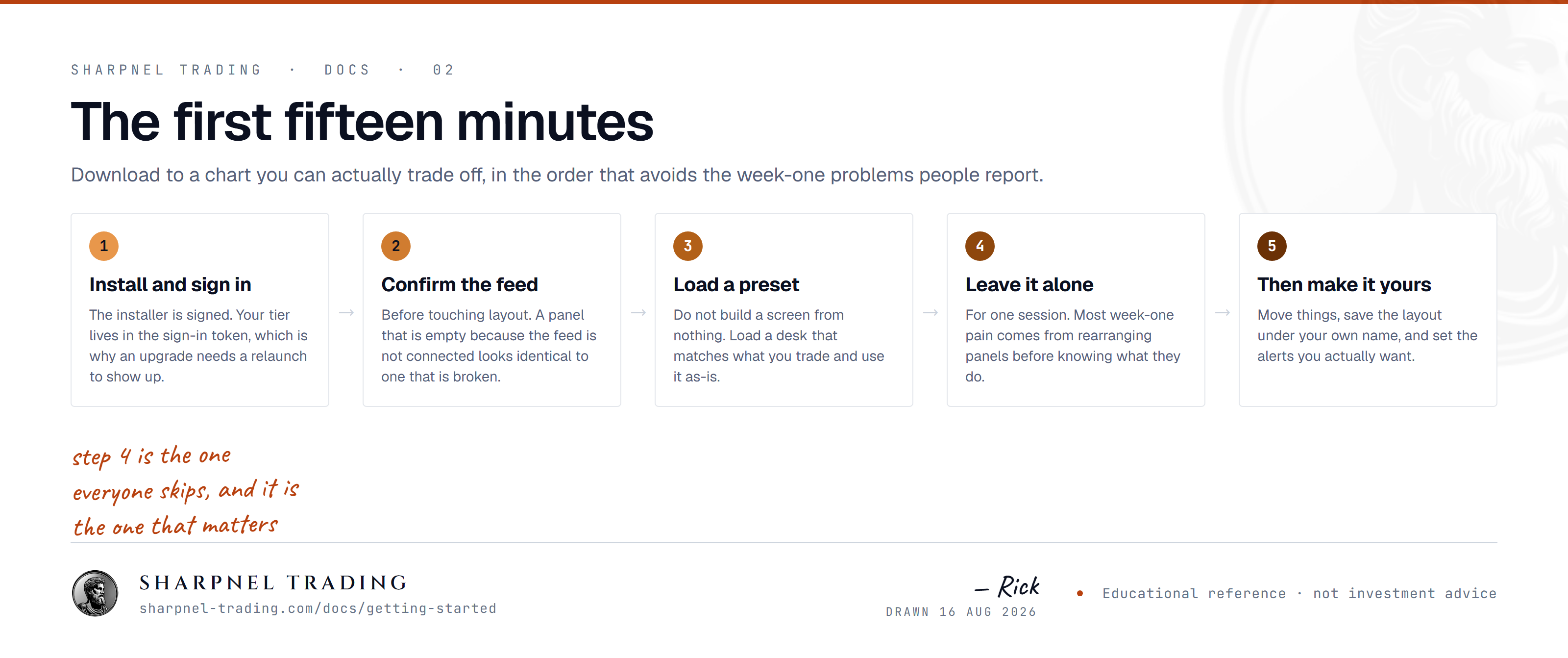
Sharpnel is a native desktop terminal for Windows and macOS — both signed, the Mac build notarised by Apple — with Linux in development. Getting started is three steps: create an account at /register, upgrade to Pro, and launch the desktop terminal — the signed Windows installer is available to download with Pro. The free Explorer tier lets you evaluate the terminal on 15-minute delayed data first — no credit card, no time limit.
When Sharpnel boots, you see a default layout: a chart on the left, DOM on the right, news ticker along the top. That's the canvas. Everything else is a panel you drop in.
Ready to run it? Grab the desktop build from the download page.
There are two keyboard surfaces and they do different jobs. The command line is the input at the left of the top toolbar — terse trader mnemonics, symbol first. The palette is a searchable list of everything the terminal can do.
On the command line, a bare ticker — ES, NVDA, BTC-PERP — moves every linked panel to that symbol. Add a verb and it opens that panel on it:
Those are the verbs that take a symbol first — CHART, DOM, FP/FOOTPRINT, TPO, QUOTE, TF, ALERT, BUY, SELL, LAYOUT, THEME, HELP — and it completes company names as you type, so royal bank offers RY.
Panels have their own codes. Type one on its own and that panel opens. Forty of them, and each panel prints its code in its own title bar so you pick them up as you go:
BT opens Backtest rather than charting BT Group. Add the verb and the symbol wins again: BT CHART still charts BT Group. Press F1 for the full sheet; it lists every code beside its panel and filters as you type.Everything else lives in the palette. It takes a prefix: # searches panels, @ searches symbols, and > searches commands. Type without a prefix and it searches all of them.
SPY and hit Enter — every linked panel moves to SPY.TF 15m to switch timeframe.SPY CHART on the command line opens a chart already pointed at SPY. With time it becomes muscle memory.Panels dock anywhere — drag a tab, drop it on an edge, and the workspace resizes. Every panel lives under the Add Panel menu, grouped the way a desk is: Trading, Charts, Indicators, Order Flow, Options, Stocks, Risk, Quant, Performance, Macro.
To find one by name instead of by menu, open the palette with Ctrl+P and type # followed by any part of the panel’s name — #footprint, #halts, #curve.
Five panels also have a symbol-first shortcut on the command line:
Close a panel with Ctrl + W or by clicking its tab-close. Detach a panel into its own floating window by dragging its tab out of the workspace.
Once your workspace feels right — panels sized, timeframes set, indicators loaded — save it as a preset:
Layouts persist per-account. Sign in on another machine and your saved layouts load with you.
| Ctrl+P | Open the command palette (works from anywhere). |
| Ctrl+L | Focus the command line — the mnemonic input in the top toolbar. |
| Ctrl+K | Symbol search — find a company by name or ticker. |
| B | Market buy at the current price. |
| S | Market sell at the current price. |
| F | Flatten the current position. |
| Ctrl+E | Center the focused chart on the last bar. |
| Ctrl+A | Auto-scale the Y axis. |
| Esc | Close palette / cancel active drawing tool / stop replay. |
| Shift+/ | Show the in-app shortcut cheat sheet. |
The full shortcut list — grouped by domain — is in Keyboard Reference.
Every panel ships with a built-in HELP card covering what it shows, when to reach for it, its hotkeys, and related panels. Type ? or help in the palette to open the index, or help <panel> to jump straight to one — help gex, help wmap, help footprint. Same six-section format as these web docs, available without leaving the terminal.
