The Ctrl+P palette and the terminal command line — prefixes, verbs, and how they route.
“Press control P to open the command palette, type any panel or action, and press enter to run the top match.”
The desktop terminal is built to be run without the mouse. There are two command surfaces, and they do different jobs:
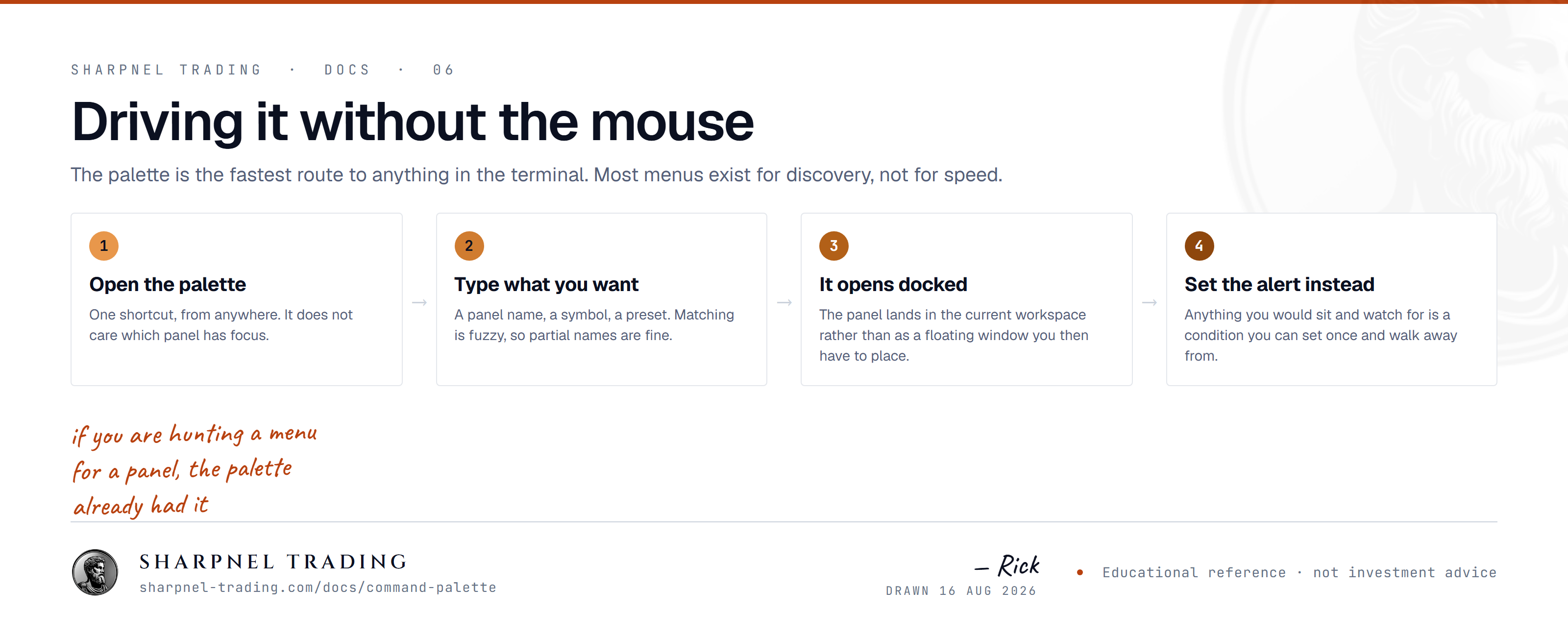
Press Ctrl+P anywhere (also File > Command Palette…) and a centered launcher drops from the top of the window. One search box, a ranked list below it. Enter runs the highlighted row, Esc closes, ↑ / ↓ move the selection.
RECENT commands first (ranked by how often and how recently you use them), then the full catalog grouped by category.fooprint still finds Footprint, tps still finds Time & Sales.A leading character scopes what the box searches. No prefix is the same as > (commands).
> | Commands — the default. Every panel toggle and named action. ">foot" or just "foot" finds the Footprint panel. |
# | Panels only — restricts the list to openable panels, cutting the command noise when all you want is to dock something. |
@ | Symbols — a ticker picker that shares the same universe and ranking as Ctrl+K. "@NQ" retargets the chart, DOM, and tape to NQ at once. |
The command line is the amber input in the top bar — the terminal idiom, always in reach. Type a command and press Enter; ↑ / ↓ walk your recent command history. An input it doesn't recognize flashes the field red rather than guessing.
The first word decides how the line is read. A bare alphanumeric token is treated as a symbol; otherwise it's a verb.
<SYMBOL> | A bare ticker (ES, NQ, AAPL) retargets the workspace to that symbol — the chart, DOM, and tape all follow. |
<SYMBOL> CHART · DOM · FP · TPO · QUOTE | Set the symbol and open that panel on it in one line. FP and FOOTPRINT are the same target. |
BUY <qty> <symbol> | Submit a market buy. Routes through the same order path — and the same paper/ARM safety — as the order ticket. |
SELL <qty> <symbol> | Submit a market sell. |
ALERT <symbol> <price> | Arm a price alert above that level on that symbol. |
TF <timeframe> | Change the focused chart's timeframe (see the accepted list below). |
LAYOUT <name> | Apply a desk layout — a built-in (Trading, Research, Orderflow) or any layout you've saved by name. |
THEME <name> | Switch the terminal theme: Midnight, Slate, or Classic. |
HELP / ? | Open the command palette. |
TF takes any of these. For anything finer-grained, set the resolution from the chart's own timeframe chips.
1m5m15m1h4h1dEvery panel in the terminal registers itself as a View: Toggle … command, so the palette can open any of them by name — the fastest path when you don't remember (or haven't bound) a hotkey. The same catalog is browsable from the menu bar's Add Panel menu, grouped by workflow (Trading, Charts, Order Flow, Options, Macro, and so on).
The core surfaces also carry direct hotkeys — the DOM on Ctrl+Alt+D, Footprint on Ctrl+Alt+F, TPO on Ctrl+Alt+T, and symbol search on Ctrl+K. The full binding list is on the Keyboard page, and every one is rebindable.
? or HELP in the command line opens the palette.Hotkey Cheat Sheet — a filterable table of every command and its shortcut.Help > Keyboard Shortcuts opens the full bindings list (and the rebind editor).